Romestead Dedicated Server Guide: Hosting, Co-op Setup, and What to Check First
Planning a Romestead server? This practical guide explains when renting or self-hosting makes sense, how dedicated-server setup fits together, and what to verify before your co-op group joins.
On this page
Do you need a Romestead dedicated server?
A dedicated server is most useful when Romestead becomes a shared co-op routine rather than a single evening session. If one player always hosts locally, the world depends on that person being online, having a stable connection, and keeping the same save available. A dedicated server separates the world from one player machine so the group can return to the settlement more consistently.
That does not mean every group should rent a server on day one. If you are still testing performance, learning the first-hour route, or waiting for friends to decide whether they will keep playing, local hosting may be enough. Dedicated hosting becomes more attractive when different players join at different times, when progress loss would be painful, or when a small community wants predictable access.
Because Romestead can change through updates, treat this guide as a planning layer. Use the official Steam page for live game availability, then check the active dedicated-server instructions before changing ports, config, or saved-world files.
Best fit
A regular co-op group that wants the world online even when the usual host is offline.
Wait if
You are only testing the game once, do not know your group size, or have not confirmed current server support.
Self-hosting vs paid Romestead server hosting
Self-hosting gives you direct control over files, updates, and troubleshooting. It can work well for a small group if you understand your router, firewall, Windows or Linux service setup, and backup routine. The tradeoff is time: when something breaks, you own the fix.
Paid game hosting is easier to start because the provider manages the machine, dashboard, and often the install path. The risk is opacity. Some hosts advertise a supported game before their panel exposes enough control for saves, config files, logs, or update timing. Before paying, confirm how you can access the server files and whether you can download backups.
For Romestead, provider choice should be conservative. Favor hosts that document the Steam app, dedicated-server tool, ports, update process, restart controls, and save location. If a provider only offers a generic landing page with no operational detail, treat it as a sales page rather than proof that your group will be easy to support.
GSC showed a live long-tail query around Romestead server hosting, including German-language intent for hosting. This page therefore keeps the focus on server planning, provider questions, ports, saves, backups, and update checks instead of general wiki or download searches.
When comparing Romestead server hosting cost, separate the advertised monthly price from the work your group still owns. Managed hosting may include a control panel, scheduled backups, update controls, and support, while unmanaged hosting can leave SteamCMD, firewall rules, save recovery, and every update to you. Compare the complete operating burden rather than choosing the lowest headline price.
| Option | Best for | Main risk |
|---|---|---|
| Self-hosting | Small technical groups that want control over files, ports, and backups | Router, firewall, uptime, and update work are your responsibility |
| Paid hosting | Groups that want an always-on world without maintaining a machine | Provider may hide saves, logs, config, or update timing |
| Wait and test locally | New groups still deciding whether Romestead will become a regular game | World availability depends on the local host |
Setup flow: SteamCMD, server app, config, launch, verify
Most dedicated-server workflows follow the same practical sequence: install or update the server tool, place configuration values, open the required network path, launch the process, then verify that players can connect from outside the host machine. The exact commands and file names can change, so do not copy an old command without checking the current guide.
Community documentation for Romestead dedicated servers has referenced SteamCMD and a dedicated server app ID, plus a configuration file and server password fields. Use those details as version-sensitive instructions, not as permanent facts. If a command fails, first confirm whether the app ID, branch, or file path changed after an update.
After the first successful launch, write down what worked: operating system, install path, app ID, config file, external port, admin password policy, backup path, and restart command. That small runbook matters more than a perfect first install because it lets another player help when the usual admin is unavailable.
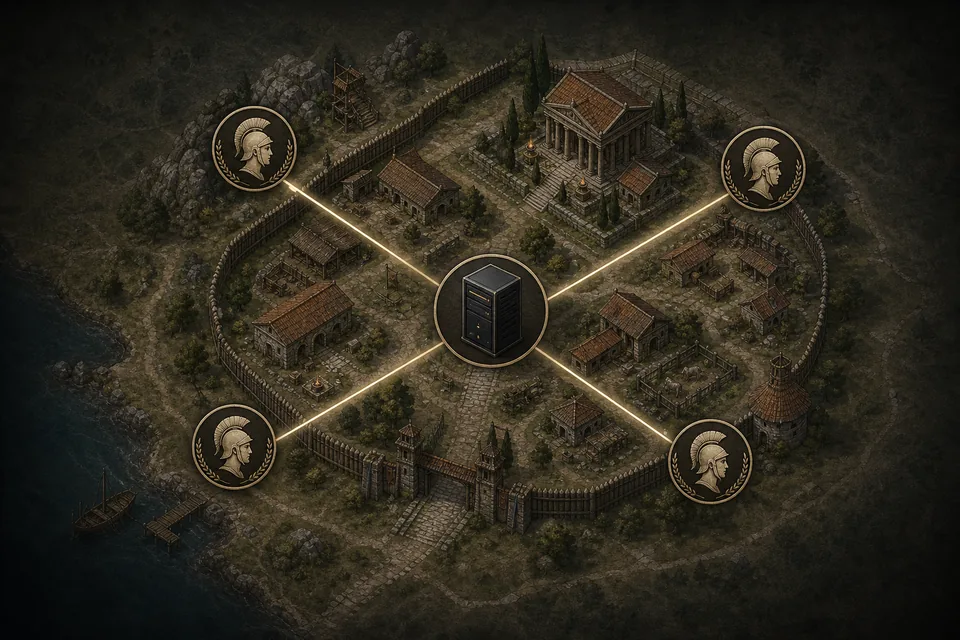
What to ask before choosing a Romestead server host
A useful host should make the operational details visible before checkout. Ask whether the panel supports file access, manual restarts, update control, config editing, save downloads, region choice, and log viewing. If support cannot answer those questions, expect friction when your group actually needs help.
Price is not the only filter. A slightly cheaper host that hides saves or forces updates without notice can cost more time than it saves. A better Romestead host makes it easy to recover a world, roll forward after a patch, and move away later if your group grows.
If you rent a server, do a test before inviting everyone. Create a disposable world, connect with at least two players, restart the service, confirm the world persists, download a backup, and check whether updates are documented. This catches most provider weaknesses before the real settlement matters.
| Question | Why it matters | Pass condition |
|---|---|---|
| Can I download saves? | You need exit and recovery options | Panel or SFTP access exposes world files or backup exports |
| Can I edit config safely? | Passwords, server name, slots, and gameplay values may live there | Provider documents file path and restart behavior |
| Can I see logs? | Connection and crash problems need evidence | Panel shows logs or gives file access |
| How are updates handled? | Game patches can change compatibility | Manual or clearly scheduled updates with notes |
Ports, config files, and passwords: verify before sharing the server
Connection failures often come from a simple mismatch: the server is running, but the network path or advertised setting does not match what players use. Dedicated-server guides for Romestead have referenced UDP port 8050 in configuration examples, but you should verify the current value before opening firewall rules or telling players what to enter.
Keep server passwords separate from admin or host-panel passwords. A player password can be changed if it leaks; an admin password or hosting account leak can expose saves, billing, and configuration. Share only the minimum needed for regular players to join.
When changing a config file, change one thing at a time and restart cleanly. If the server disappears after several edits, you need to know which value caused the problem. Keep a copy of the last working config before experimenting with ports, slots, names, or password fields.
Operational habit
Record the live port, config path, save path, restart command, and last working file before inviting the group.
Security habit
Use a player password for joining and a different private admin password for management.
Backups and updates: protect the world before every patch
A dedicated server is only as trustworthy as its backup routine. Back up the world before patches, before config experiments, before migrating providers, and after major progression milestones. For a survival settlement game, the save file is the real value your group is paying to protect.
Use at least two backup layers when possible: the host panel snapshot and a local downloaded copy. Panel backups are convenient, but a local copy lets you leave the provider or recover if the panel fails. Name backups with the date, build context, and reason, such as before-update or after-boss-run.
Updates deserve a short checklist. Stop the server cleanly, back up the save, update the server files, start the server, check logs, join with one test account, and only then announce that the world is ready. This prevents the full group from discovering a broken patch at the same time.
| Moment | Backup action | Reason |
|---|---|---|
| Before a game update | Download or snapshot the current world | Lets you recover if the new build breaks the save or config |
| Before provider migration | Download saves, config, and notes | Prevents vendor lock-in |
| After major progress | Create a named milestone backup | Protects bosses, builds, and rare resource progress |
Troubleshooting connection and stability problems
When players cannot join, split the problem into three layers: server process, network path, and game version. First confirm the server is actually running and logging cleanly. Then confirm the port and firewall are reachable from outside the host machine. Finally confirm every player is on the same current Romestead build.
If only one player fails to connect, the issue may be that player’s network, firewall, password entry, or version. If nobody can connect from outside, check host firewall, router forwarding, provider firewall, and whether the server is listening on the expected port. If the server crashes after joining, collect logs before changing many settings.
For paid hosting, send support a concise report: server region, time, what players see, whether the server process stayed online, the last config change, and a log excerpt. Good reports get better answers; vague “server broken” tickets often lead to generic replies.
Fast isolation
One player failing suggests client-side or credential trouble; everyone failing suggests server, port, firewall, or version mismatch.
Before support
Capture logs, exact time, provider region, recent changes, and whether a restart changed the symptom.
How much does Romestead server hosting cost?
There is no single Romestead server hosting price that fits every group. A rented server usually charges for slots, region, storage, backup features, support, and the level of control offered by the provider. Self-hosting may avoid a monthly provider bill, but it still has hardware, electricity, network, maintenance, and recovery costs.
Compare the full operating burden instead of choosing the lowest headline price. A managed host can save time with a panel, scheduled backups, and update controls; an unmanaged server may leave SteamCMD, firewall rules, save recovery, and every patch to your group. Ask how to download saves and logs before you pay.
If you are unsure whether Romestead will become a regular co-op game, test local hosting first. Rent only after you know your group size, expected uptime, region, backup needs, and who will handle updates when the usual host is unavailable.
| Choice | What you pay for | What you still manage |
|---|---|---|
| Self-hosting | Hardware, power, connection, and your own time | Ports, firewall, uptime, updates, saves, and recovery |
| Managed hosting | Monthly slots, storage, support, and provider features | Provider limits, save exports, update timing, and migration checks |
| Local test first | Little or no new hosting spend | The world depends on the local host being online |
Romestead server hosting checklist
| Check | What to confirm | Why it matters |
|---|---|---|
| Official status | Steam page shows the current game state and update context | Avoids planning around stale release or patch information |
| Setup docs | Current server guide confirms SteamCMD, app, files, and ports | Prevents copying outdated commands |
| File access | You can reach saves, config, logs, and backups | Protects the world and simplifies support |
| Test join | At least two players connect after a restart | Confirms the server is usable before the real session |
Romestead dedicated server FAQ
Sources and live references
- Official Romestead Steam page - Primary source for current store status, screenshots, updates, and platform information.
- Romestead dedicated server setup guide - Community wiki setup details for SteamCMD, config, ports, and server operation.
- SteamCMD documentation - Valve developer documentation for SteamCMD basics and server update workflows.